

What is being compared?
For each item in scope (prediction request or agent execution, depending on the source), the platform:- Loads the original structured response the model produced (from durable storage).
- Loads the ground truth from feedback: either JSON you supplied in the
responsefield, or JSON inferred from text notes when Infer corrections is enabled. - Runs one or more evaluators on those pairs and aggregates metrics.
How responses are flattened
Before scoring, both the model output and the ground truth are flattened into dotted leaf paths (e.g.vendor_name, address.city, total_amount). Three rules govern flattening:
- Lists are atomic. The whole list is kept as a single leaf value rather than recursed into.
line_itemsis one leaf, notline_items[0].description. Each evaluator decides how to compare lists:field_accuracydoes exact equality,fuzzy_field_matchJSON-serializes both sides for similarity, andllm_judgeevaluates the entire list semantically. _metadatakeys are skipped. Any key containing_metadata(for example_metadata,name_metadata) is treated as internal bookkeeping and never scored.- Null ground truth is excluded by default. When the corrected value for a leaf is
null, that leaf is left out of the metric instead of being counted as a mismatch. Disable this withskip_null_expected: falseif you want explicit nulls to participate in scoring.
How evaluations work
- Collect feedback: use the Feedback & fine-tuning flow so corrections are tied to request or execution IDs.
- Run an evaluation: in the dashboard, pick a skill, agent, or request domain, set a date range, choose evaluators, and start the job. The run is asynchronous: you get a run record immediately and results fill in when scoring finishes.
- Review and act: inspect summaries, per-field breakdowns, and samples. For skill evaluations only, you can Optimize (new skill version) or Rerun (auto-optimize, re-process items, re-score).
Run an evaluation in the dashboard
1
Open Evaluations
In the dashboard sidebar, choose Evaluations (same area as Overview, Requests, Executions, and Completions).
2
Start an evaluation and choose a source
Click New Evaluation to open the configuration panel, then pick what you are scoring: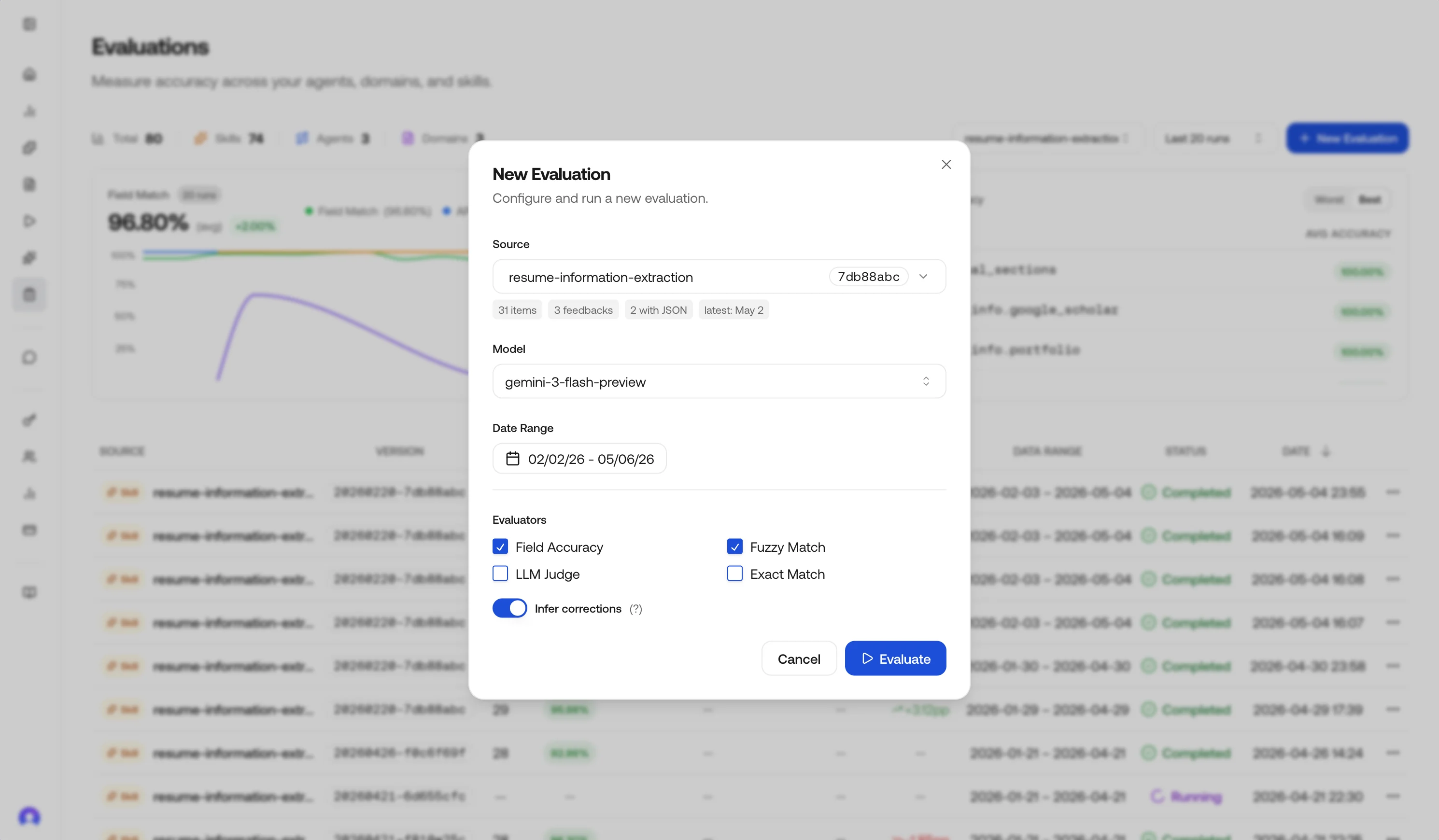
- Skill: one skill ID; includes matching prediction requests and agent executions that used that skill in the date range.
- Agent: one agent (ID and version); uses agent executions in range.
- Request domain: a hub domain string on requests (for example
document.invoice); uses prediction requests for that domain.
3
Set the date range
Choose the time window. The UI shows a preview: total items, how many have feedback, how many include JSON corrections, and the latest activity timestamp, so you can confirm the slice before you spend credits.
4
Pick a model (optional)
Choose a specific inference model to scope the evaluation to (for example
gemini-3.1-flash-lite-preview, gemini-3.1-pro-preview, vlm-1). When set, only requests and executions produced by that model are loaded into the run.Leave it on Default (auto-detect) to score every item in the window regardless of which model produced it. The selected model is also the one used by Rerun when it has to skip inference (see Rerun).5
Choose evaluators
Select one or more strategies. Defaults lean on Field accuracy; see Evaluator types for tradeoffs.
6
Select fields (optional)
Optionally restrict evaluation to specific fields by passing a list of top-level keys or dotted leaf-path prefixes (for example
vendor_name, address, line_items). When omitted, all fields in the JSON output are evaluated.This is useful when you only care about a few critical fields, or want to exclude noisy fields from accuracy metrics. See Field selection for matching rules and API examples.7
Infer corrections (optional)
Infer corrections is on by default in the dashboard. When it is on, the platform can turn notes-only feedback into structured JSON using an LLM, guided by your skill schema when available.
Inferred JSON is best-effort. For production-grade ground truth, prefer explicit JSON in feedback; see Feedback & fine-tuning.
8
Run
Submit the run. The run record is created immediately with status
running and progresses through running → completed (or failed if scoring errors). The dashboard polls every few seconds and unlocks the result view once the status is completed.Review results
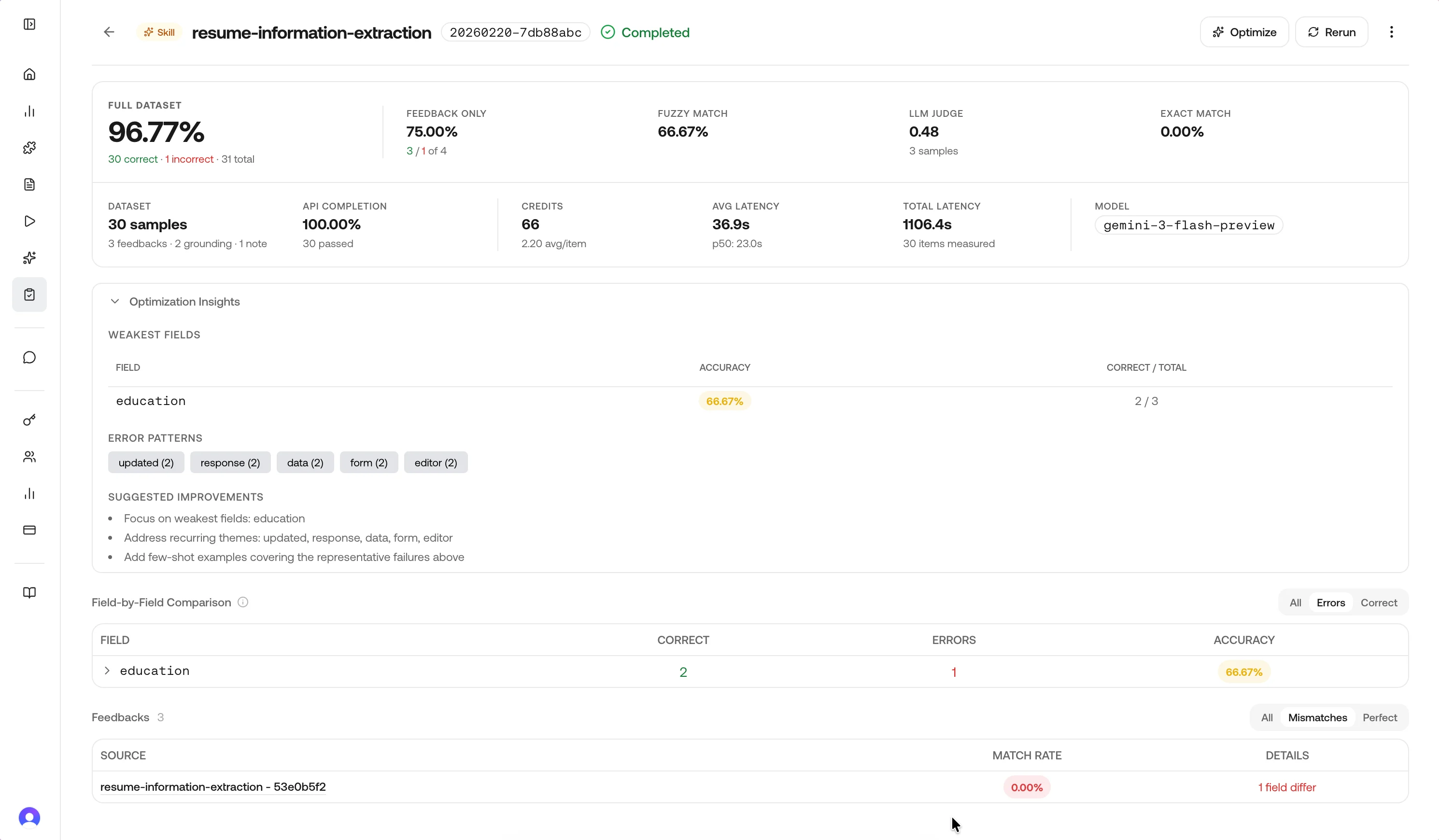
Open a completed run from the history table.- Overall accuracy: rolled up from field-level matches vs mismatches (see field accuracy below), including samples without corrections where the model applies an “accepted” assumption for reporting.
- Accuracy delta: change vs the previous completed run for the same source label/type when one exists.
- API completion rate: share of in-scope items whose upstream API calls completed (vs failed or incomplete).
- Total samples: items evaluated in this run.
Performance metrics
Completed runs also surface the cost and latency of the underlying API traffic so you can weigh accuracy against operational footprint.
The same numbers feed the Credits and Model columns in the history table. Use the VS Prev column on the same table to see field-match deltas at a glance.
Field breakdown
The Field-by-Field Comparison block lists each extracted field so you can see where the model disagrees with ground truth.Use the row filters at the top right—All, Errors, or Correct—to narrow the table; Errors is useful when you only want fields that still need work.
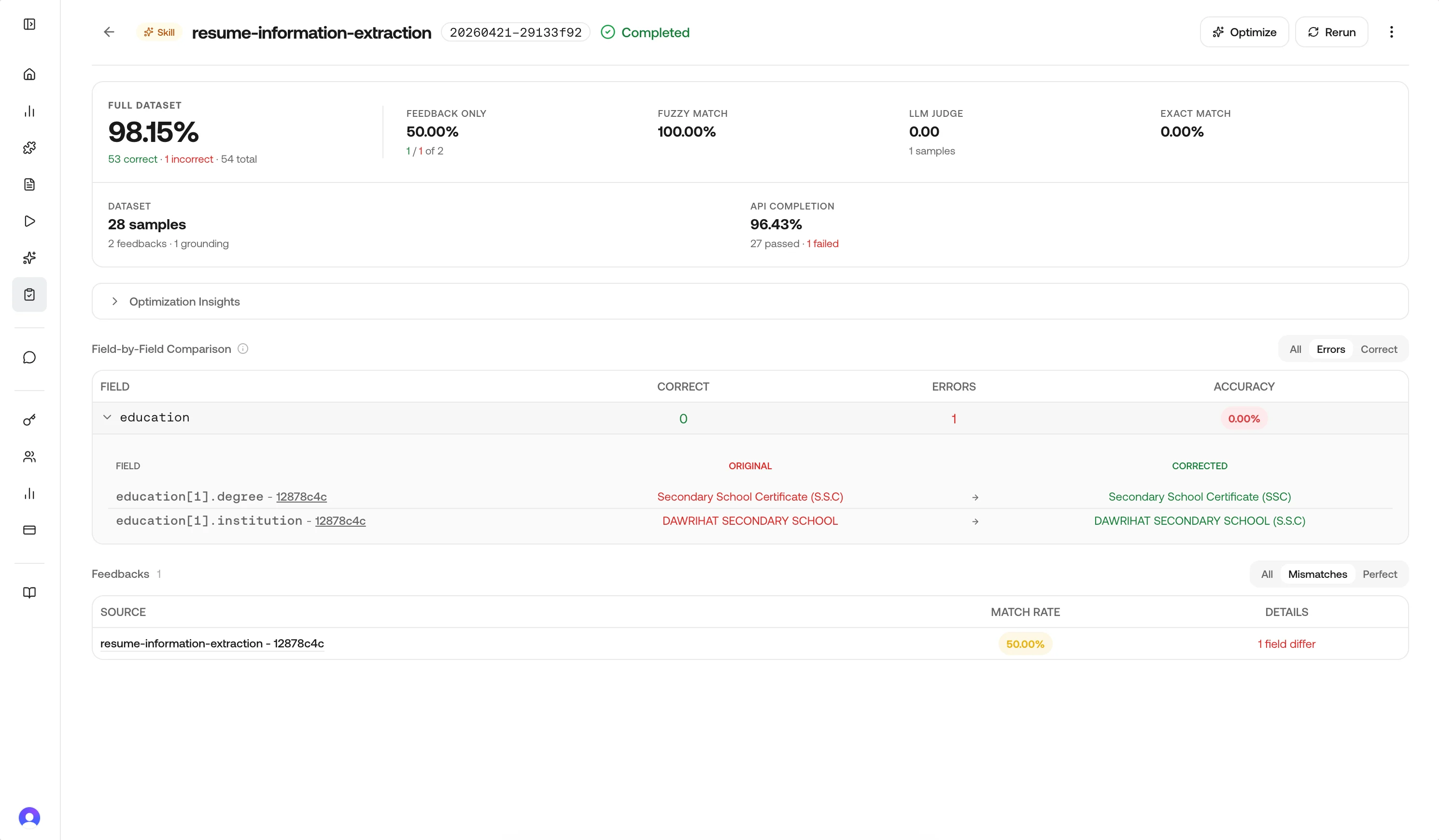
Rows are ordered so the weakest fields surface first. Expand a field to open an inline drill-down: a nested table with Original (model output) and Corrected (feedback) side by side so you can compare concrete values.
Optimization hints (skill runs only)
When the source is a skill, completed results can include optimization hints: weakest fields, recurring themes from notes, a small set of representative failures, and short suggested next steps. These align with what the Optimize action uses when generating a new skill version.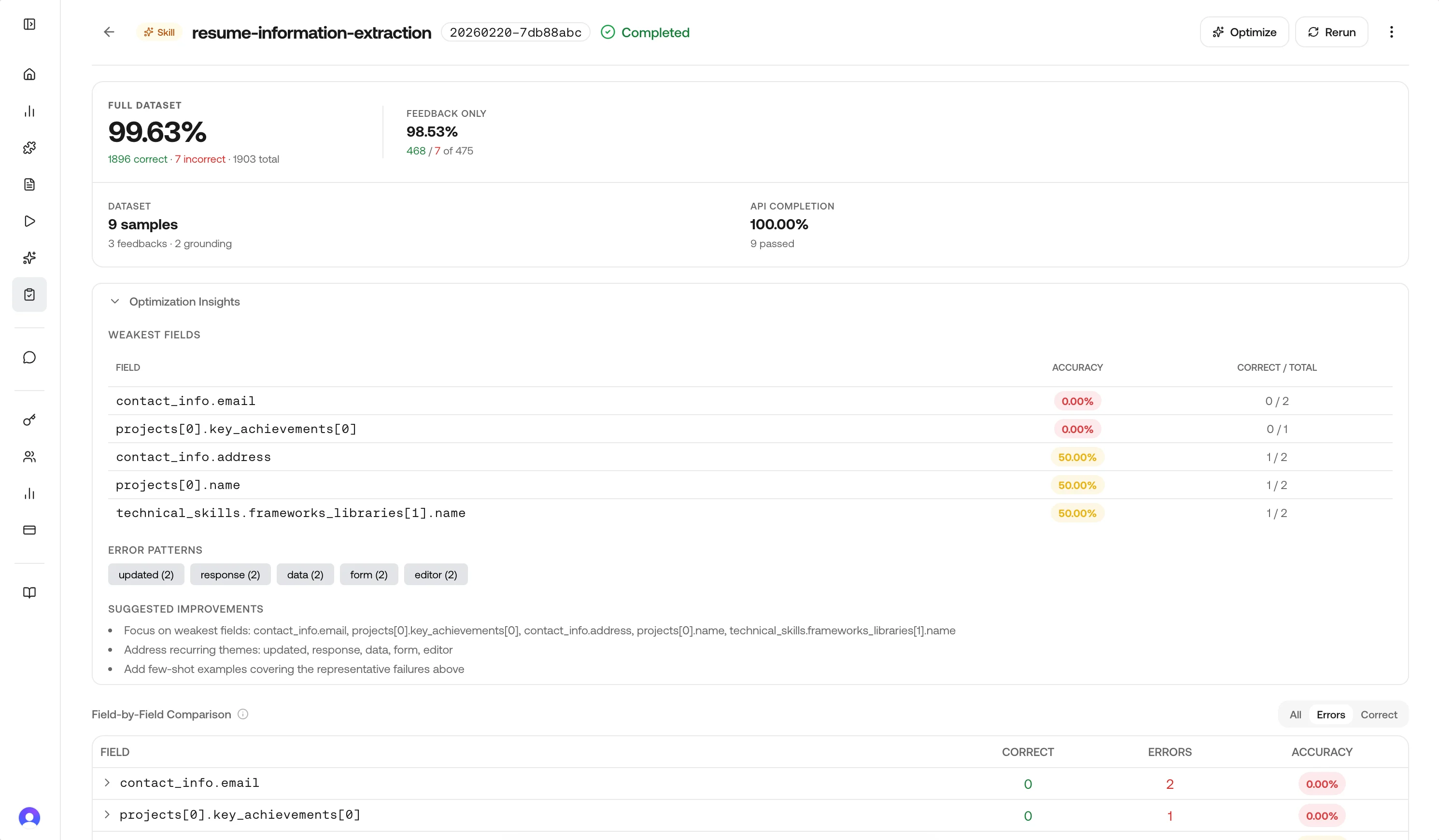
Metrics and history
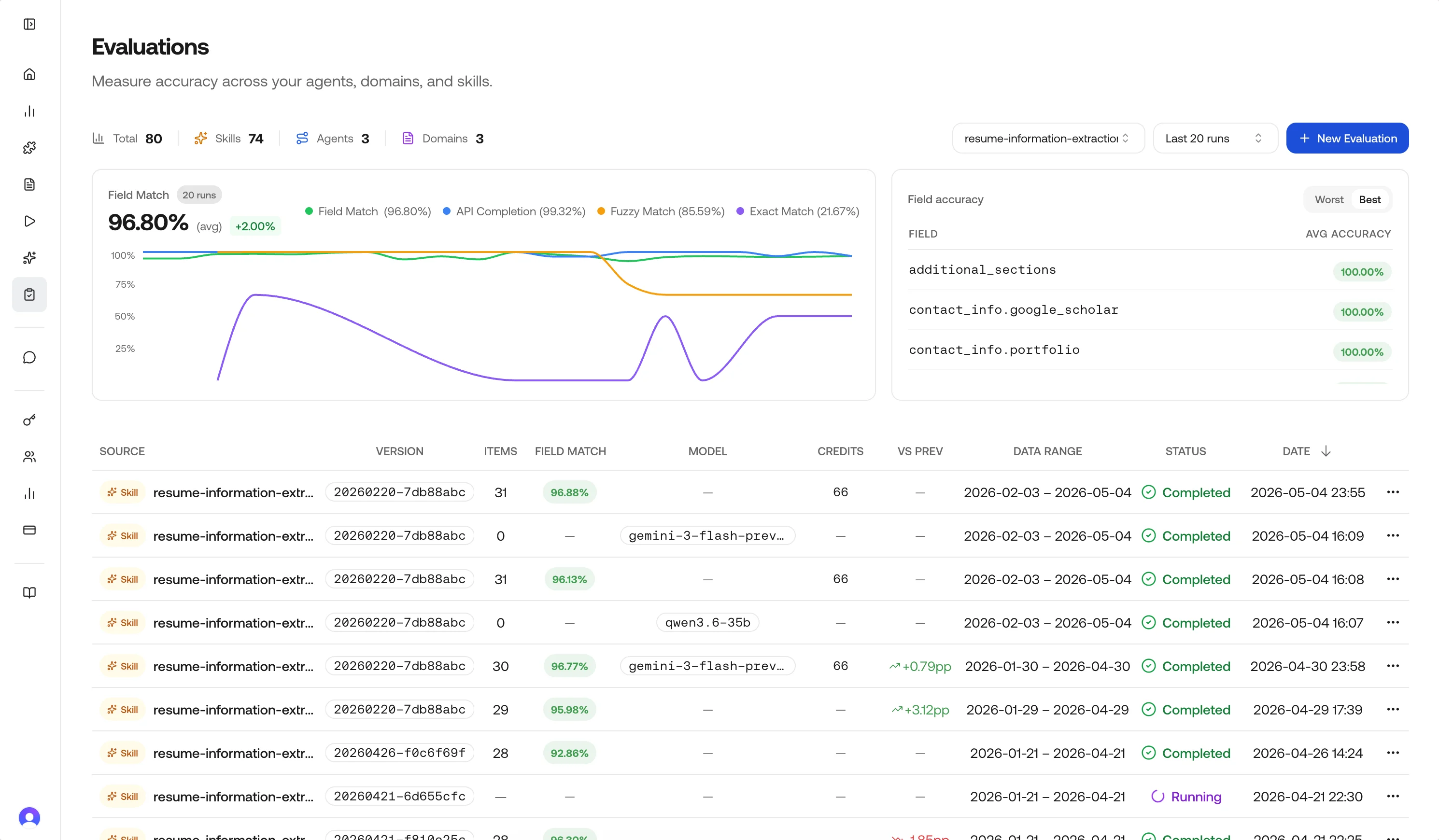
The main Evaluations page aggregates recent runs:- Summary cards: Total runs and counts by source type (Skills, Agents, Domains).
- Accuracy trend: Field-match accuracy across recent completed runs, filterable by source. Optional overlays show API completion rate, fuzzy-match rate, and exact-match rate when those evaluators were enabled.
- Cross-run field view: Weakest fields across history, with a Worst / Best toggle.
- History table: Status, source, model, credits, field-match accuracy, VS Prev delta, data range, and timestamps. Row actions depend on status and source type.
Evaluation sources (API naming)
The product and API distinguish sources like this:
The preview endpoint uses the same identifiers so you can validate counts before running.
Evaluator types
You can combine evaluators in one run. In API payloads, they are defined as follows:Field accuracy (field_accuracy)
Flattens nested JSON into leaf paths, compares model output to ground truth, and reports match rate per field and overall. This is the primary signal for the dashboard’s field table and optimization hints.
Fuzzy field match (fuzzy_field_match)
For string leaves, uses the better of character-level and token-level similarity so short labels and long sentences are both scored fairly. A pair passes if similarity ≥ 0.7; otherwise it fails that leaf’s fuzzy check.
LLM judge (llm_judge)
Evaluates whether the structured output is semantically acceptable versus the correction, with a 0–1 score per sample. Use it when paraphrases or layout differences should not count as errors. Enabling it adds model latency and cost relative to deterministic evaluators.
Exact match (equals_expected)
Compares leaves with strict equality (including whitespace and casing). To avoid long free-text fields dominating the metric, only leaves whose expected string length is ≤ 128 characters participate; longer leaves are skipped for this evaluator’s aggregate. If nothing qualifies on a sample, that sample may be omitted from the exact-match rate.
LLM judge and Exact match are independent toggles—turning on the judge does not replace exact match; choose both only when you want both signals.
Choosing a combination
Field selection
By default, evaluations score all fields in the JSON output. You can optionally restrict scoring to a subset of fields by passing afields list of top-level keys or dotted leaf-path prefixes.
How matching works:
Lists are not recursed into. A leaf prefix like
line_items matches the list itself, not line_items[0].description. To compare list contents semantically, enable LLM judge alongside field_accuracy.fields (and any other run options) in the run or rerun request body:
fields is omitted or null, all fields are evaluated (backward-compatible). The same is true of evaluators, infer_corrections, and skip_null_expected when reused inside Rerun: omitted values are inherited from the original run’s stored config.
Interpreting accuracy
Actions on a run
Optimize (skill evaluations only)
Available whensource_type is skill and the run completed. The service samples up to 30 response/correction pairs by default (configurable up to 200 in the API), calls the skill optimizer with a Gemini model, and creates a new skill version with the same name. The optimizer produces:
- A prompt addendum appended to the original prompt that captures generic error patterns (no actual data values).
- Per-field schema hints that augment the JSON Schema’s field descriptions for the columns that had the most errors.
Rerun (skill evaluations only)
Also skill-only in the UI. Rerun calls the platform rerun pipeline:- Optimizes the source skill first unless you pass a different skill via API.
- Re-executes the underlying requests and executions against the new skill, swapping the model when one was selected.
- Copies feedback forward onto the new request and execution IDs (LLM-inferring corrections from notes when enabled).
- Re-scores the new traffic and writes the result to a fresh run row.
evaluators, fields, infer_corrections, or skip_null_expected on the rerun request, the values are inherited from the original run’s stored config. Pass any of them explicitly to override. This lets you re-score the same window under different conditions (for example switching evaluators to ["llm_judge"]) without rebuilding the full request.
Agent and domain evaluations still give you full metrics and samples, but Optimize and Rerun are not shown because those flows require a skill to re-execute against.
Delete
Removes the run record (typically allowed for completed or failed runs). It does not delete underlying requests, executions, or feedback.Continuous improvement
With evaluations, you can continuously improve your processes:1
Ship
2
Collect feedback
3
Evaluate
4
Optimize / edit skill
5
Ship again
Programmatic feedback
Evaluations read feedback you already stored; they do not replace the feedback API. For submission formats, entity IDs (request, agent_execution, chat), and examples, use Feedback & fine-tuning and Submit feedback.
The dashboard’s run, optimize, and rerun actions call internal evaluation services (not the public api.vlm.run OpenAPI bundle). Treat the dashboard as the supported surface for those operations unless your integration team has exposed the same routes to you.
Best practices
- Prefer JSON corrections in feedback; use Infer corrections when you only have notes.
- Use field selection to focus metrics on the fields that matter most, especially during iterative improvement.
- Match evaluator choice to schema: fuzzy for noisy text fields, judge for semantic leniency, exact for short codes.
- Read optimization hints on skill runs before clicking Optimize to confirm the weakest fields make sense.
- Use Rerun as an end-to-end A/B after Optimize, since it reprocesses real inputs rather than only rescoring old JSON.
- Keep date windows meaningful: very wide windows mix old prompts with new ones and blur trends.
Related pages
Feedback & fine-tuning
Ground truth tied to requests and executions.
Submit feedback API
HTTP reference for structured feedback.