> ## Documentation Index
> Fetch the complete documentation index at: https://docs.vlm.run/llms.txt
> Use this file to discover all available pages before exploring further.
# Chat
> The interactive playground for chatting with Orion, VLM Run's visual agent
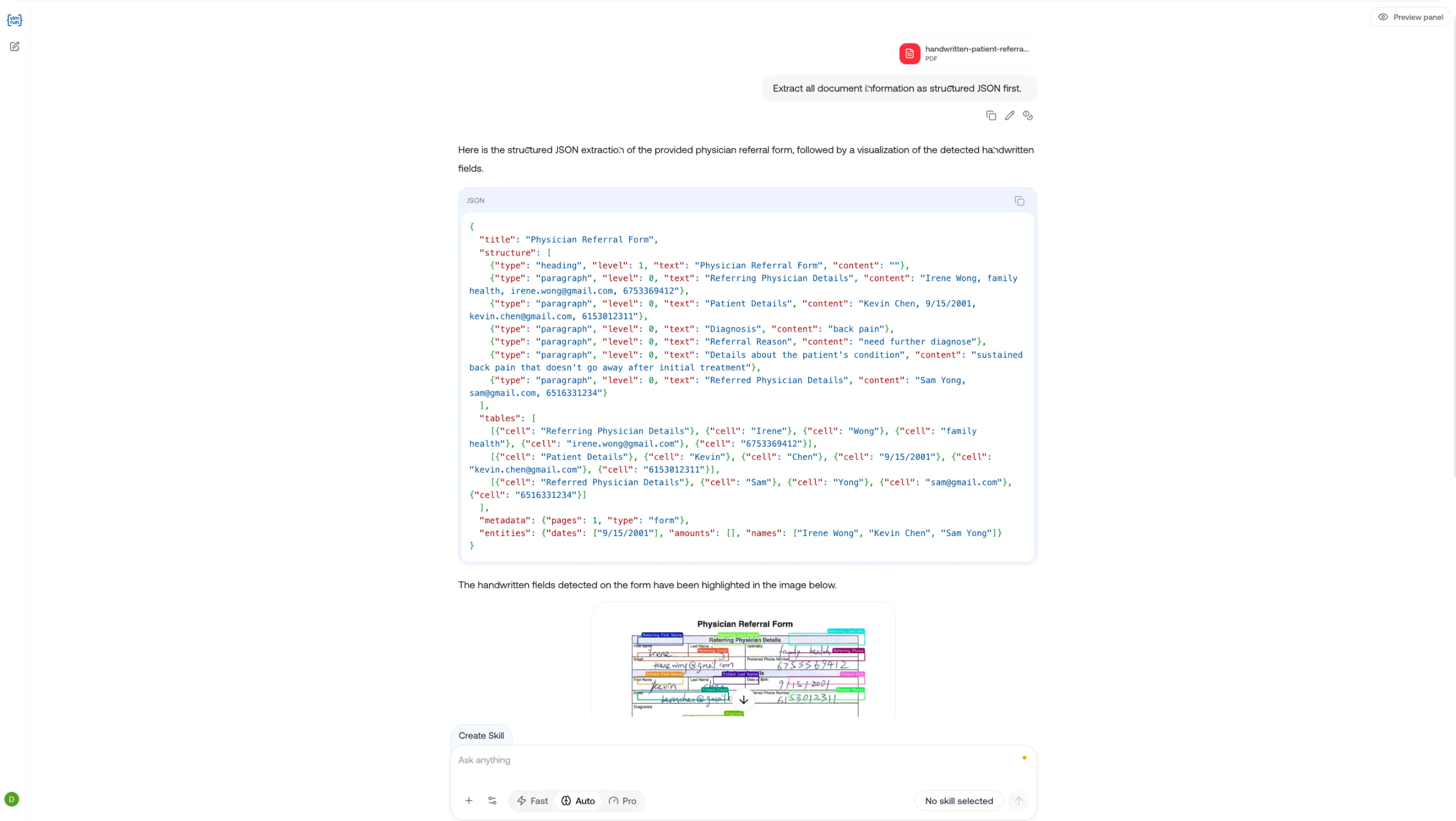
Chat is the primary playground on the VLM Run platform. It gives you a direct conversational interface with **Orion**, our visual agent that can see, reason over, and act on images, documents, and videos.
Use Chat to explore what Orion can do before integrating via the API, or as a daily tool for ad-hoc visual understanding tasks.
Try it now at [chat.vlm.run](https://chat.vlm.run/). No setup required.
## What You Can Do
Upload a PDF, invoice, medical form, or any multi-page document. Ask Orion to summarize it, extract specific fields, compare sections, or answer questions grounded in the document's content. Orion processes every page and returns structured, cited responses.
Drop in a photo, screenshot, or diagram. Orion can caption the image, detect and label objects, identify UI elements, extract text via OCR, or answer open-ended questions about what it sees. Results include bounding boxes and visual annotations when relevant.
Attach a video and ask Orion to summarize it, identify key moments, describe actions, or extract metadata across frames. Video understanding works across formats and durations, from short clips to multi-minute recordings.
Select a skill from the skill picker to guide Orion's response. Skills constrain the output to a specific schema (invoice line items, receipt totals, document classifications) so you get consistent, structured data every time. You can also create new skills directly from a conversation.
Chain operations in a single conversation: detect objects, crop a region, enhance it, then analyze. Orion maintains context across turns, so each step builds on the last.
## Key Features
| Feature | Description |
| --------------------------- | ------------------------------------------------------------------- |
| **File attachments** | Upload images, PDFs, videos, and audio directly in the chat window |
| **Skill picker** | Select a skill to constrain outputs to a specific schema |
| **Structured responses** | Get JSON-structured results alongside natural language explanations |
| **Conversation history** | Resume past conversations and iterate on results |
| **Create skills from chat** | Turn a successful conversation into a reusable skill in one click |
| **Real-time streaming** | Responses stream token-by-token for immediate feedback |
## From Playground to Production
Chat is designed to be the bridge between exploration and integration. A typical workflow looks like:
1. **Explore**: Upload a sample file and ask Orion a question to see what's possible.
2. **Refine**: Iterate on your prompt, select or create a skill to structure the output.
3. **Integrate**: Take the skill and model configuration from Chat and wire it into your API calls using the [Python SDK](/sdk-reference/getting-started), [Node.js SDK](/sdk-reference/node/getting-started), or [REST API](/api-reference/v1/post-chat-completions).
Every chat conversation is logged in the [Observe](/platform/observe/overview) dashboard, so you can inspect completions, debug responses, and track costs as you go.
## Related Pages
Use the Orion agent in conversational chat mode via the API.
Explore the chat completions REST endpoint.
Run chat sessions from the command line.
Learn how to create and manage skills on the platform.