> ## Documentation Index
> Fetch the complete documentation index at: https://docs.vlm.run/llms.txt
> Use this file to discover all available pages before exploring further.
# Detection
> Detect and locate objects, faces or people in images with bounding boxes and confidence scores
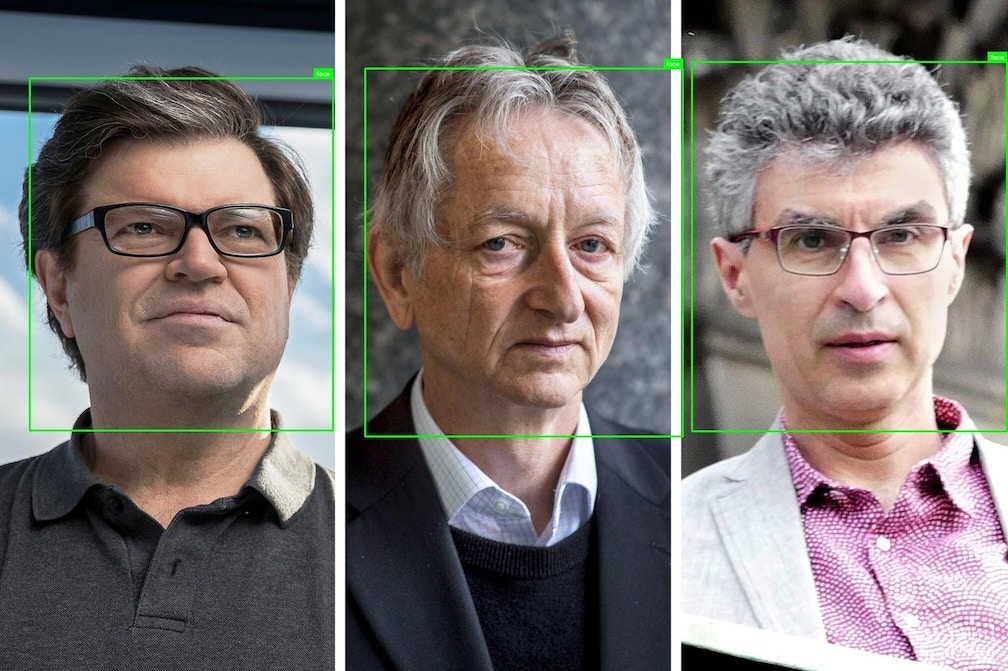
Detect objects, people, or other entities in images with precise bounding boxes and confidence scores. Ideal for inventory management, quality control, security applications, and automated visual inspection.
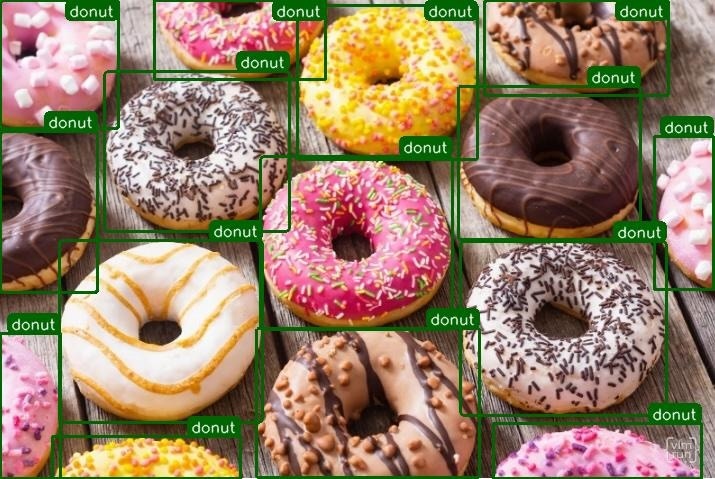
Persons

Faces
## Usage Example
For best results, we recommend using the [Structured Outputs API](/agents/structured-responses) to get responses in a structured and validated data format.
The following examples can also be used for face or person detection. The response schema is identical to the object detection example.
```python Python theme={"theme":{"light":"github-light","dark":"dark-plus"}}
from vlmrun.client import VLMRun
# Initialize the VLMRun client
client = VLMRun(api_key="")
# Execute object detection
response = client.agent.completions.create(
model="vlmrun-orion-1:auto",
messages=[
{"role": "user", "content": [
{"type": "text", "text": "Detect all objects in this image"},
{"type": "image_url", "image_url": {"url": "https://storage.googleapis.com/vlm-data-public-prod/hub/examples/image.object-detection/donuts.png", "detail": "auto"}}
]},
],
)
print(response.choices[0].message.content)
```
```python Python - Structured Outputs theme={"theme":{"light":"github-light","dark":"dark-plus"}}
from vlmrun.client import VLMRun
from pydantic import BaseModel, Field
# Define the response schema
class Detection(BaseModel):
label: str = Field(..., description="Name of the detected object")
xywh: tuple[float, float, float, float] = Field(..., description="Bounding box (x, y, width, height)")
class Detections(BaseModel):
detections: list[Detection] = Field(..., description="List of detections")
# Initialize the VLMRun client
client = VLMRun(api_key="")
# Execute object detection with structured output
response = client.agent.completions.create(
model="vlmrun-orion-1:auto",
messages=[
{"role": "user", "content": [
{"type": "text", "text": "Detect all objects in this image"},
{"type": "image_url", "image_url": {"url": "https://storage.googleapis.com/vlm-data-public-prod/hub/examples/image.object-detection/donuts.png", "detail": "auto"}}
]},
],
response_format={"type": "json_schema", "schema": Detections.model_json_schema()},
)
# Validate the response
result = Detections.model_validate_json(response.choices[0].message.content)
# >>> Detections(detections=[Detection(label="donut", xywh=(...)), ...])
```
```typescript Node.js theme={"theme":{"light":"github-light","dark":"dark-plus"}}
import { VlmRun } from "vlmrun";
const client = new VlmRun({
apiKey: "",
baseURL: "https://api.vlm.run/v1"
});
const response = await client.agent.completions.create({
model: "vlmrun-orion-1:auto",
messages: [
{
role: "user",
content: [
{ type: "text", text: "Detect all objects in this image" },
{ type: "image_url", image_url: { url: "https://storage.googleapis.com/vlm-data-public-prod/hub/examples/image.object-detection/donuts.png", detail: "auto" } }
]
}
]
});
console.log(response.choices[0].message.content);
```
```typescript Node.js - Structured Outputs [expandable] theme={"theme":{"light":"github-light","dark":"dark-plus"}}
import { VlmRun } from "vlmrun";
import { z } from "zod";
import { zodToJsonSchema } from "zod-to-json-schema";
// Define the response schema with Zod
const DetectionsSchema = z.object({
detections: z.array(z.object({
label: z.string().describe("Name of the detected object"),
xywh: z.array(z.number()).describe("Bounding box (x, y, width, height)")
})).describe("List of detections")
});
// Initialize the VLMRun client
const client = new VlmRun({
apiKey: "",
baseURL: "https://api.vlm.run/v1"
});
// Execute object detection with structured output
const response = await client.agent.completions.create({
model: "vlmrun-orion-1:auto",
messages: [
{
role: "user",
content: [
{ type: "text", text: "Detect all objects in this image" },
{ type: "image_url", image_url: { url: "https://storage.googleapis.com/vlm-data-public-prod/hub/examples/image.object-detection/donuts.png", detail: "auto" } }
]
}
],
response_format: {
type: "json_schema",
schema: zodToJsonSchema(DetectionsSchema)
}
});
const result = DetectionsSchema.parse(JSON.parse(response.choices[0].message.content));
```
## FAQ
Orion supports open-world (aka open-set) detection. This means it is not limited to a predefined list of categories; it can detect, locate, and ground virtually any object described in natural language, including rare items, specific parts of objects, and complex visual relations.
The bounding boxes come in the format of normalized `xywh`, where `x` and `y` are the top-left corner of the bounding box, and `w` and `h` are the width and height of the bounding box. All values are between 0 and 1, and normalized by the image size. `x` and `w` are normalized by the image width, and `y` and `h` are normalized by the image height.
The confidence score is a value between 0 and 1 that indicates the confidence of the detection.